
Ever get annoyed when your mobile banking app doesn't work when you need it most? You're not alone. In this post, we'll walk you through three simple fixes to help get your banking back on track.
Think of it as giving your app a little tune-up. With just a small tweak, everything can start running smoothly again. From checking your network to clearing out old cache data (temporary stored info), these steps can quickly fix those annoying glitches.
So why not give it a try? With a few quick fixes, you can get back to enjoying a straightforward, hassle-free banking experience.
Essential Mobile Banking Troubleshooting Steps
First off, make sure your network is working because a stable connection is key. Check your bank’s in-app alerts or status page to spot any server issues right away. For instance, try loading the site from a different network to see if your current connection is the problem.
- Verify the bank’s server is up by looking at in-app alerts or the status page.
- Clear the app cache to get rid of old data that might be slowing things down. Fun fact: one user saw their app freezing less than half as much after a cache clear.
- Restart your device to fix any small software hiccups impacting the app.
- Update the app to the latest version so you can benefit from bug fixes and smoother performance.
- Reset your network settings to help reconnect properly, especially after switching between Wi-Fi and mobile data.
- Use any built-in diagnostic tools in the app, things like a quick log export or error report can offer clues about what’s wrong.
- Follow these steps one at a time to see which one fixes the issue, isolating errors as you go.
- If you’re still stuck, jot down what you’ve tried and reach out to support for extra help.
These steps are designed to tackle common issues, like app freezes on devices such as the iPhone 8 or current Android phones. By following them step by step, you should be able to get your mobile banking running smoothly again.
Troubleshooting Mobile Banking Login Failures

Password and PIN Reset
Start by resetting your password or PIN using the app’s easy steps. Often, if your login details act up, the app guides you right through the process. For example, if your PIN gets locked, you’ll see a "Forgot PIN?" option that helps you verify your identity and update your codes. This simple fix usually clears up most login problems quickly.
Biometric and Facial Recognition Troubleshooting
If you use fingerprint or face recognition and things aren’t working right, try giving your sensors a little refresh. Clean your device’s camera or fingerprint scanner to remove any smudges that might block the reading. You might also need to re-register your biometric data to clear up any hiccups in the process. This small step can help get your login running smoothly again.
Two-Factor Authentication and OTP Issues
When two-factor authentication slows down because you’re waiting on OTP codes, check your SMS settings to make sure messages aren’t getting lost in spam. A quick look at your message filters might reveal the issue. If delays persist due to network or carrier issues, the in-app code generator can be a faster alternative. These simple checks help keep your account secure while reducing wait times.
Diagnosing and Fixing App Crashes and Performance Lags
When your mobile banking app starts acting up, freezing or even crashing, it can be really annoying. Often, these issues are due to memory leaks (when the app doesn't properly manage the data it uses) or rendering problems (how the app displays images and text). If you notice your app freezing a lot, it might be because the device's memory is overloaded or the hardware is just a bit old. A simple and often effective trick is to reinstall the app. Many users have seen it work wonders by clearing out any corrupted data and making transitions between screens smoother.
Identifying Crash Patterns
Start by keeping an eye on when the app crashes. Try to recreate the problem by doing the same actions over and over, like tapping on the same menu item or switching from one screen to another. It helps to write down small details such as your device's operating system version and exactly when the crash happens. For example, you might note, "I experienced a crash when switching from the dashboard to transactions." Also, recording any error messages or unusual alerts can provide useful hints. This detailed information can be really handy if you end up needing to reach out to support.
UI and Navigation Performance Checks
Next, check how responsive the app’s buttons and menus feel. Look out for any signs that outdated design elements or inconsistent navigation might be slowing things down. You could test this by switching between sections and noting if the screen transitions feel slow or sluggish. Perhaps you've noticed that your menu takes an extra couple of seconds to light up. These checks are useful to point out any design hiccups, and they might even suggest that a system update or reinstall could be the fix. Ultimately, these small observations can lead to a much smoother and more enjoyable app experience.
Addressing Network Connection and Server Downtime Issues
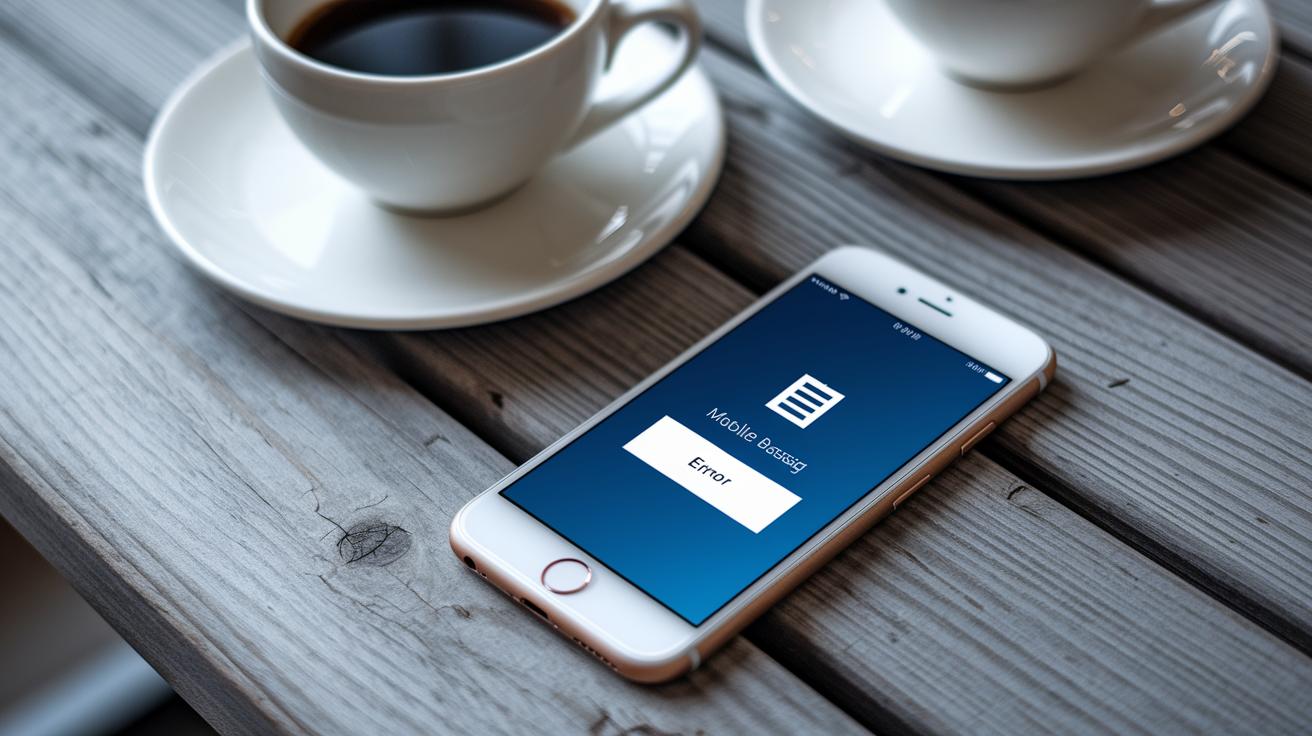
Sometimes, your mobile banking app might not work right because your connection is off. It could be that your Wi-Fi is unstable, your mobile signal is weak, or a VPN or strict firewall is messing with secure calls. When you see a timeout error or the app doesn’t update, it usually means those secure API requests aren’t getting through as they should.
A great first step is to try switching between Wi-Fi and mobile data. For example, if you’re having issues on Wi-Fi, give mobile data a whirl. If the app works on mobile data, your home router or ISP might be the problem. And yes, VPN software can sometimes reroute those secure connections. Disconnecting or adjusting your VPN might just bring things back to normal.
It’s also smart to consider that a corporate firewall or strict security settings on your device could be causing these hiccups. Testing your app on another network or turning off extra security settings for a bit can help you spot the source of the issue. In the end, taking a closer look at your network setup is the key to getting things back on track.
Quick steps to try:
- Toggle between Wi-Fi and mobile data.
- Check your router or ISP for any disruptions.
- Adjust or disconnect your VPN.
- Look at your firewall or security software settings.
- Contact network support if you’re still experiencing problems.
Resolving Transaction Errors and Fund Transfer Glitches
Mobile banking can be tricky sometimes. You might see duplicate charges or funds that seem to vanish into thin air. When error codes like TXN_FAIL pop up, it means a transaction didn’t go through the way it should. And if you spot DUP_CHARGE, the app is warning you that you’ve been charged twice. Catching these codes early means you can fix problems fast and keep your account balance true. One simple fix is to log out and log back in. Often, this little refresh helps your app sync with the bank's server. If your transfer shows a slow update on the balance, it might just be a server delay. Clearing your local cache or forcing a sync can usually set things right, making sure your transactions match up with the real-time data.
Common Transaction Error Codes
When you see codes like TXN_FAIL or DUP_CHARGE, they’re just the app’s way of saying something went wrong. TXN_FAIL tells you the transaction didn’t work as planned, and DUP_CHARGE means the system saw a duplicate charge. If things look out-of-sync, try logging out and back in. This little trick can often force your app to refresh and clear out any temporary glitches. I remember one time after sending money, I noticed my balance was off until I did a quick logout-login cycle, it fixed everything right away.
Steps to Reverse Duplicate Transactions
| Step | Description |
|---|---|
| 1 | Check your transaction history for any duplicate entries. |
| 2 | Log out of the app and then log back in to refresh your account data. |
| 3 | If the duplicate charge is still there, use the support feature in the app to report it. |
| 4 | Follow the bank’s automated process to reverse the error. |
| 5 | Keep a record by noting error codes and taking screenshots as proof. |
Following these steps helps you fix your account quickly and keeps your transaction history clear and up-to-date.
Managing Mobile Deposit Errors and Check Deposit Setbacks

Mobile deposits can be super easy when your phone is set up just right. A clear picture of your check goes a long way to making sure your deposit gets approved without a hitch. Sometimes, a blurry or off-kilter check image makes the system misread numbers and letters, causing errors. Try putting your check on a plain background with plenty of light, and be sure to capture the whole thing without any parts cut off.
At times, the app might act up because of account sync bugs, basically, little glitches that stop your deposit data from updating properly. When that happens, clearing the app’s data or even reinstalling it can help it reconnect with the bank’s system so your deposit goes through smoothly.
A neat trick is to use apps that offer AI-powered image recognition. This technology works like a pro at picking up the details, even if your check isn’t perfectly aligned. The result is fewer mistakes and faster deposits, which means less hassle for you.
Here are some simple tips to get the best results:
- Clean your camera lens and use natural lighting.
- Place your check on a plain, contrasting background.
- Make sure the entire check fits in the frame without any edges missing.
- Keep your device steady when you snap the picture.
- Use the app’s auto-capture feature if it has one.
- Update or reinstall the app to clear any sync bugs.
Overcoming Update and Compatibility Challenges
It can be really annoying when your mobile banking app won't update, especially when you need it for quick transactions. Often, this happens because your device is low on free space or your connection isn’t steady during the download. Imagine trying to update your phone while it warns you about low storage; just a little extra space, even for a short time, might let the update finish.
Sometimes the issue isn’t about storage at all. Your app might require a newer version of your operating system to work smoothly. So if your phone is still running on an older version, like Android 7.0 instead of Android 8.0, you might see errors popping up that block new features.
If you run into these problems, one good trick is to uninstall the app and then install it again. This method often wipes away any corrupted installation files that could be causing conflicts. Picture an app that crashes right after an update; starting fresh can clear out any version mix-ups that have built up over time.
In essence, keeping your operating system updated and managing your free storage space can drastically cut down on these update issues. These simple steps can boost your banking app's performance, helping you stay connected and in control of your accounts.
Tackling Security Certificate and Encryption Error Problems

Mobile banking apps count on up-to-date SSL certificates to keep your data safe during transactions. If you see an error like ERR_CERT_DATE_INVALID, it means your app isn’t making a secure connection. This often happens because your device’s date and time settings are off or your operating system is clinging to outdated certificate info.
Try these three easy fixes to clear up those encryption hiccups:
- Check your device's date and time settings. Set them to automatic or adjust manually so your app can properly verify the SSL certificate.
- Update your device's trust store. By refreshing your operating system, you remove old certificate data that might block a secure connection.
- Uninstall and reinstall the app. This step refreshes the encryption handshake, replacing any corrupted certificate files with fresh ones.
These suggestions address the heart of SSL and encryption issues, making sure your mobile banking experience stays smooth and secure by keeping your device and app in tune with today’s security standards.
Leveraging Support Tickets and Diagnostic Tools for Mobile Banking Troubleshooting
When your mobile banking app starts acting up, simple fixes might not cut it. Instead, using smart support tickets and handy diagnostic tools can help find the real issue. Begin by checking the app’s error logs. Often, exporting these logs from within the app gives you useful details that technicians can use to speed up repairs. For instance, one user shared that repeated timeouts stopped once the log export showed a communication glitch with the server.
If automated chatbots or confusing phone menus haven’t helped, the next step is to file a detailed support ticket. Attach screenshots, error codes, and the steps you took to run into the problem. This info helps the bank’s support team quickly escalate your issue to someone who can solve it faster.
Keeping an eye on errors all the time is also important. It means the bank can mix in real user feedback during performance checks. This not only clears up current problems but also helps make the app more stable over time.
| Tool/Method | Purpose |
|---|---|
| In-app Log Export | Gathers error logs automatically |
| Diagnostic Dashboard | Tracks app performance and error trends in real time |
| Support Ticket System | Escalates issues as per the bank’s priority steps |
| User Feedback Integration | Uses direct input to diagnose issues quicker |
Final Words
In the action, we reviewed a clear pathway to fixing common mobile banking issues. The guide walked through checking app cache, rebooting devices, addressing login hitches, and solving performance lags. We also covered network glitches, transaction errors, and certificate challenges along with using support tools to resolve more complex problems. By applying these steps during mobile banking troubleshooting, you’re empowered to face technical hiccups with a calm and steady confidence. Keep these steps in mind for a smoother, more reliable banking experience.
FAQ
How do I troubleshoot mobile banking issues on an iPhone?
Mobile banking issues on an iPhone often stem from outdated apps or network glitches. Resetting your network, updating the app, and clearing cache typically restores smooth performance.
What issues is Bank of America facing today?
Bank of America may experience app glitches or server slowdowns when demand peaks. Checking status alerts and contacting customer service can provide clear guidance on resolving the problems.
How can I tell if US Bank is having issues today?
US Bank might undergo scheduled maintenance or system updates that cause brief service delays. Reviewing official status pages and announcements offers current and reliable information.
What should I do if mobile or online banking isn’t working?
If mobile or online banking fails, check your network connection, update the app, and restart your device. These steps often fix common technical issues quickly.
What features do mobile banking apps offer that online banking might not?
Mobile banking apps offer quick access to features like camera-based check deposits and instant push notifications, enabling functions that traditional online platforms may not support.


