
Ever notice how some payments go off without a hitch while others seem to drag? Setting your favorite card as your default on Apple Pay is a quick fix for that. It’s like picking your trusty tool from your kit that you know will come through when you need it. In this guide, I’ll show you an easy way to update your default card so you can enjoy fast, hassle-free transactions every single time.
How to Set Your Apple Pay Default Card on iPhone
Changing which card you use first is a breeze and can make paying at the store or online much smoother. It means you don’t have to fumble around every time you pay.
Start by opening Settings on your iPhone. Then tap Wallet & Apple Pay to see all your cards. Under Payment Cards, look for “Default Card” and tap it. You’ll get a list of all the cards you’ve added. Pick the one you want as your go-to. Finally, confirm your choice with Face ID or Touch ID.
Once you’ve done that, your chosen card is all set for Apple Pay transactions. It’s like saying, "Hey, this card is my favorite for daily swaps!" Whether you're upgrading your favorite rewards card or just reshuffling your lineup, updating your default is simple on any iPhone 6 or later.
Now, you’re ready to enjoy a smoother, faster payment experience every time you tap and go.
Customizing Apple Pay Default Card on iPad and Mac

Default settings keep your payments fast and hassle-free on all your devices. Changing your default card on an iPad or Mac means you won't need to switch cards manually, whether you're paying in apps, online, or even by tapping at a store. It’s a simple way to have your main card ready whenever you need it.
Apple Pay Default Card on iPad
If you have an iPad, whether it's an iPad Pro, iPad Air 2, or even an iPad mini 3 and later, you can quickly set up your payment preferences. Just open Settings and tap on Wallet & Apple Pay. In that menu, you'll see the Default Card option which lets you choose the card you want to use for in-app and online payments. You can change your default card anytime. For example, if you discover a card with a better rewards program, simply tap it to make it your new default. Pretty neat, right?
Apple Pay Default Card on Mac
Using a Mac is just as straightforward. Open System Settings (or System Preferences on older Macs) and click on Wallet & Apple Pay. Make sure a paired device like an iPhone 6 or later – or even an Apple Watch – is close by to finish your purchase. Then, pick the card you prefer, and you’re all set for smooth, quick payments directly from your computer.
Apple pay default card: Easy Payment Setup
Apple Watch lets you pay quickly and safely. With just a double-click of the side button, you finish a purchase without needing to carry extra cards. It’s a simple, smooth way to pay when you’re out and about.
To change the card your Apple Watch uses by default, open the Watch app on your iPhone. Then, tap Wallet & Apple Pay to see your payment settings. Next, select Default Card to view the list of cards you can choose from. Remember, only the cards added to both your iPhone wallet and your Watch wallet will show up here.
Once you see your options, just tap the card you want as your primary choice. This lets you switch easily to a card that fits your needs, whether it’s the one with sweet rewards or your go-to for daily spending.
After setting your new default, try a test payment at a contactless terminal. This real transaction confirms that your Apple Watch is all set for future payments.
Troubleshooting Apple Pay Default Card Errors
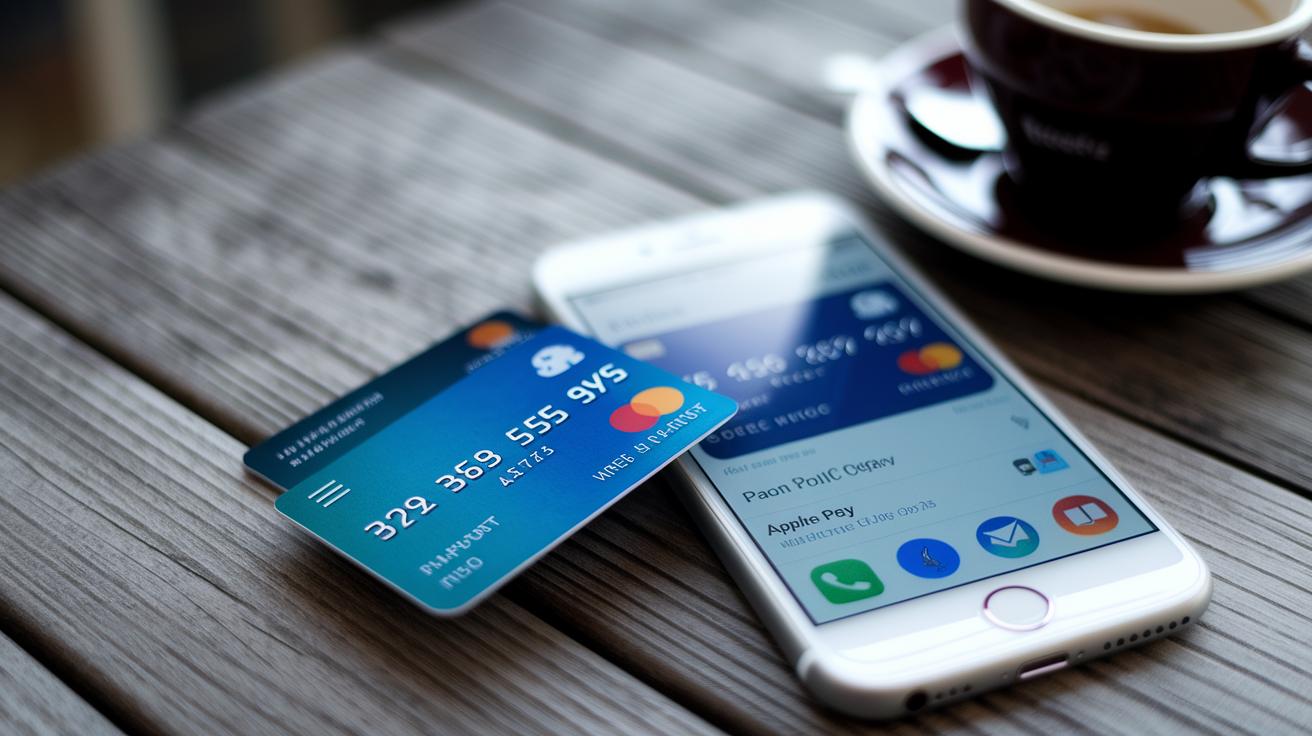
Sometimes your default Apple Pay card might not work, and it usually boils down to simple reasons. Your device may have trouble connecting when network conditions change or if maintenance is going on. Other times, the problem shows up because your card has expired, been removed, or even flagged by your bank. And sometimes system hiccups or issues with verifying your details can block a card from being added. Here's an easy guide to help you figure out common error messages and what to do about them:
| Error Message | Cause | Solution |
|---|---|---|
| Default Card Unavailable | No network connection or server issues | Reconnect to the internet or wait a bit |
| Card Expired | Your card has been flagged as expired | Update your card details or add a new one |
| Unable to Add Card | Verification didn’t go through or the card isn’t supported | Contact your bank or try a supported card |
| Wrong Card Charged | The last used card isn’t the one you set as default | Select your default card manually before paying |
If these steps still don’t fix the problem, you might want to reach out to Apple Support. They’re available on weekdays from 8 am to 7 pm and on Saturdays from 9 am to 3 pm. A quick call or chat with them should help you get back to smooth, secure payments.
Updating Expired or Removed Apple Pay Default Cards
If your Apple Pay card is about to expire or has been removed from your Wallet app, you'll get a friendly alert asking you to update it. These reminders also prompt you to review the Mobile Wallet Terms of Use before making any changes, so you know exactly what’s expected. It’s a neat nudge that keeps your payment info fresh without extra fees for Visa cards (though you might still pay for mobile data when verifying).
To update a card that's expired or removed, open your Wallet app and tap on the card that flagged the alert. Next, choose either Update Details or Remove Card, and add your new card information. Ever notice how you swap out old songs in your music playlist? Updating your expired card is just as simple, quick and easy, ensuring your account always uses valid, secure payment methods.
Once you’ve added your new card, head over to Settings and select Wallet & Apple Pay. Then, tap on your new card to make it your default, so every transaction goes through with your most up-to-date payment method.
Best Practices for Managing Apple Pay Default Card Settings

Apple Pay keeps your card details safe by never revealing your actual number to stores. It works like a secure shield, letting you tap to pay without worrying about your sensitive info getting out. It’s a smart way to handle your spending while you're out and about.
- Check which card is set as default every three months.
- Get rid of cards you no longer use.
- Enable Face ID or Touch ID for every deal.
- Update your device’s operating system regularly.
Giving your payment settings a quick look every now and then helps you dodge surprises and keeps your digital wallet running smoothly. When you review your cards, you can easily remove ones that aren’t needed and make sure your favorite card is front and center. This simple routine cuts down on mix-ups and makes your buying process smoother, boosting both convenience and peace of mind every time you shop.
Final Words
In the action, we explored setting up and managing your payment methods with clear steps for iPhone, iPad, Mac, and even Apple Watch. We broke down the process of choosing your apple pay default card and shared tips for handling common issues. The guide also highlighted ways to update expired or removed cards and offered simple advice to keep your digital wallet secure. Enjoy the smooth experience of contactless payments and the peace of mind that comes with knowing your payment choices are right for you.
FAQ
How do I set or change my default card in Apple Wallet and Apple Pay?
Setting your default card means opening your iPhone’s Settings, tapping Wallet & Apple Pay, and selecting “Default Card.” This way, you choose the card you want to use for all payments.
How do I change the default card on my Apple Watch?
Changing your Apple Watch’s default card involves using the Watch app on your iPhone. Navigate to Wallet & Apple Pay in the app and select the card you prefer for transactions.
How do I update an expired credit card in Apple Wallet?
Updating an expired card involves opening your Wallet, tapping the expired card, and selecting Update Details or Remove Card. After adding the new card, set it as your default in Settings.
Why can’t I remove or delete a card from my Apple Wallet or Apple Pay?
Inability to remove a card may happen if it’s still in use or restricted by your bank. Check with your financial institution or contact Apple Support for help.
How do I change the card for Instant Transfer in Apple Pay?
Changing the card for Instant Transfer means manually setting your preferred card as the default in your device’s Wallet settings before making a transaction.
How do I use Apple Pay for payments and online transactions?
Using Apple Pay involves adding your card to the Wallet app, then holding your device near a contactless terminal. Verify using Face ID, Touch ID, or your passcode to complete the payment.


