
Ever thought about turning your phone into your wallet? With Apple Pay Card, you can pay with just a quick tap. It swaps your paper cards for digital ones, which are protected by passcodes or your fingerprint.
The card uses advanced encryption, a way of scrambling data so only you can read it, to keep your information safe, making every purchase feel as reassuring as a friendly handshake. In this article, we'll walk through setting up your card on your phone and show you how digital payments can be both easy and secure.
Apple Pay Card Overview: What It Is and How It Works
Apple Pay is like having a digital wallet right on your phone. Instead of carrying a plastic card, you add your debit or credit card to your device by scanning it or entering the details by hand. Once you add a card, you verify it using a passcode or a biometric method, like Face ID (which uses your face) or Touch ID (which uses your fingerprint). This extra check keeps every transaction extra safe.
When you want to buy something, simply hold your phone near a contactless terminal, just like you’d tap a physical card in a store. For example, you can tap the plus sign in Wallet to add a new card. I remember the first time I tried it, I scanned my card, and in just moments, my device was all set for quick, secure payments! Plus, Apple Pay isn’t only for in-store purchases; you can use it on websites and in apps that support this feature.
Since you’re not using a physical card, the whole process feels smart and effortless. Your payment details are protected by advanced encryption (a way to scramble information so only you can understand it) and tokenization (which replaces your actual card number with a unique code). With Apple Pay, you get a smooth blend of versatility and top-notch security, making everyday purchases, whether in a store, on a website, or on your phone, a breeze.
Apple Pay Card Setup and Management

First, open your Wallet app. Tap the plus sign to start adding your card. You can either scan your card or type in your details. For example, you might see instructions like "Scan your card and enter the code you get by SMS." This clear guide makes the process easy.
After submitting your card details, you'll receive a prompt via SMS or email to verify your information. You might be asked to "Enter the code from your text message" to complete the setup. This step helps make sure the card is really yours and keeps your info safe.
Your device, like the iPhone 8 or later and Apple Watch Series 3 or later, can hold up to 16 cards. Older devices can only handle 8 cards. Remember, each device works on its own, so if you have more than one, you'll need to add your card to each one separately, just like having a unique key for every door you own.
If you decide to remove a card, go to your Wallet settings and choose the card you want to delete. You'll confirm the removal with a passcode or Face ID. For instance, you might swipe left on the card, tap remove, then confirm with your fingerprint. This simple action keeps your payment info secure and easy to manage.
Apple Pay Card Security Features and Authentication
Apple Pay keeps your payment details safe using a special chip called a Secure Element, which scrambles and locks away your information so no one can peek at it. When you make a purchase, your real card number gets swapped for a secret token, kind of like using a disguise, so sellers never see your actual card details.
Each transaction gets its own ever-changing security code along with encryption that hides your data while it’s stored and being sent over networks. Imagine it like whispering a secret code instead of stating all your bank info, which cuts down the risk of fraud and skimming.
Every time you pay with Apple Pay, you have to confirm the purchase with a passcode, Touch ID, or Face ID. You might see a message that says, "Confirm with Face ID," just to make sure it’s really you making the payment. This extra step using fingerprints, a face scan, or a simple passcode adds another layer of protection.
In short, tokenization, dynamic security codes, and secure storage all work together to create a smooth and safe payment experience. With all these safety measures in place, you can shop with confidence knowing that your digital wallet is well guarded.
Apple Pay Card Rewards, Benefits, and Fees
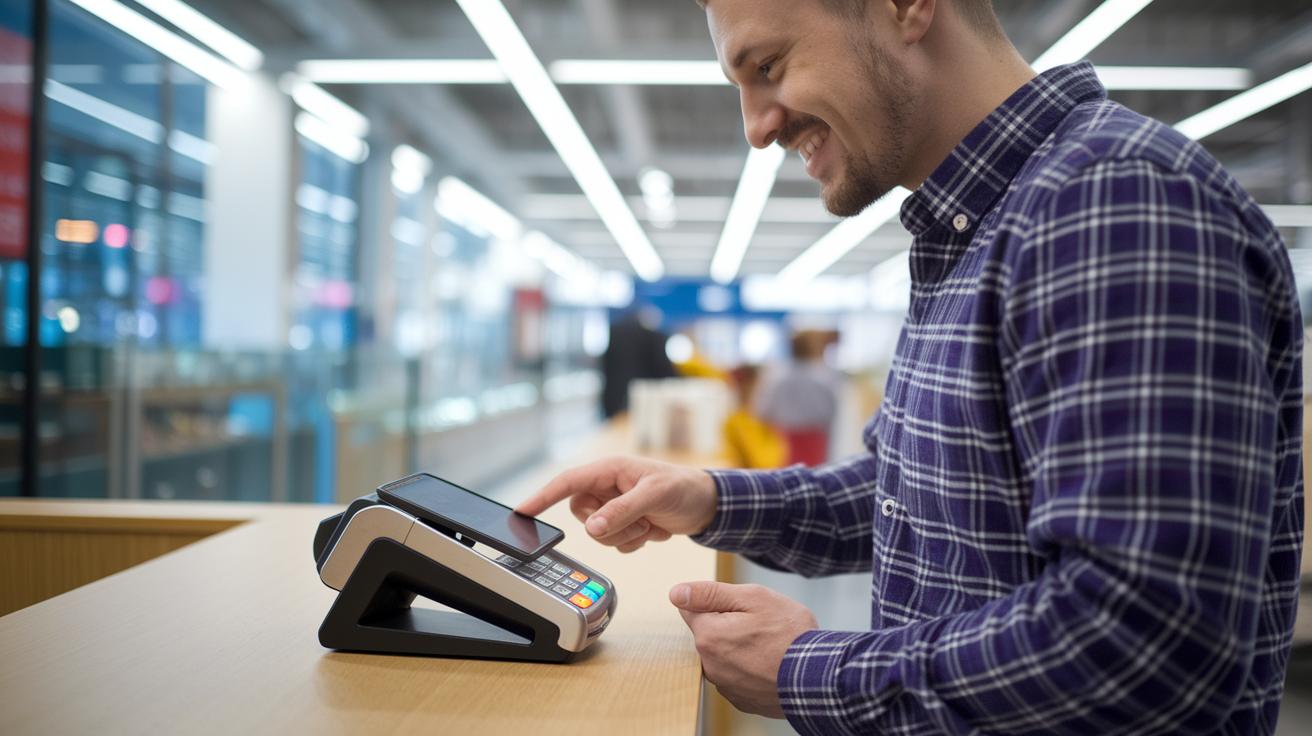
If you're using an Apple Card, every swipe counts because it has a rewards system that really makes your spending work for you. When you pay with Apple Pay at certain merchants, you earn 3% Daily Cash – it's like getting a little bonus every time you tap to pay. And even when you're shopping at local stores or grabbing snacks from a vending machine, using Apple Pay for other transactions nets you 2% Daily Cash. Imagine buying something small and watching your rewards add up quickly; it's pretty rewarding.
Now, if you decide to use your physical titanium card or its virtual number outside of Apple Pay, you'll only earn 1% Daily Cash. This setup is designed to encourage you to use Apple Pay for the best benefits. The best part? Your Daily Cash is added right away. That means you can use it instantly – whether it's paying with Apple Pay, sending it to a friend via Apple Cash, or even boosting your savings by transferring it to a high-yield account.
| Payment Method | Daily Cash Earned |
|---|---|
| Apple Pay at select merchants | 3% |
| Apple Pay for other transactions | 2% |
| Physical/virtual card outside Apple Pay | 1% |
And while Apple doesn't charge any transaction fees, keep in mind that some card issuers might add foreign-transaction fees, and a few merchants may not offer those same benefits when you use a physical card.
Apple Pay Card Compatibility: Devices, Banks, and Retailers
Apple Pay is now available in over 80 countries, making it a smart choice for global mobile payments. If your phone or watch has NFC, a feature that lets your device send info simply by being near a terminal, you can make quick, contactless purchases. For example, if you own an iPhone 8 or newer, you’re all set to tap and pay in stores that support this feature.
Major card networks like Visa, Mastercard, Discover, and Amex back Apple Pay, so thousands of banks around the world offer cards you can add to your Wallet app. Once your bank issues a card, just add it to the app and you’re ready to pay both in stores and online. A simple tip? Keep your device updated and charged so you never miss out on a smooth payment.
Shopping online is just as easy with Apple Pay. In Safari or many apps, you can complete a one-tap checkout that makes buying feel almost effortless.
Key points include:
- Compatible hardware: iPhone 8 or later, Apple Watch Series 3 or later, iPad Pro/Air/Mini, and certain Mac models with Touch ID.
- Supported by thousands of banks and the major credit card networks.
This broad compatibility makes everyday transactions secure, smart, and hassle-free.
Apple Pay Card Troubleshooting and Customer Support

If you’re having trouble with Apple Pay, the first thing to check is whether your device has the latest software. When you see a "Payment Declined" message at a contactless terminal, it might be because your phone’s OS is out-of-date or the terminal itself isn’t compatible. It’s a simple hint, your device might need a quick update.
If your card won’t add, try entering your details again. Sometimes a tiny mistake, like a missed number, can cause the issue. And if that doesn’t help, give your card issuer a call to make sure your account is set up for digital payments.
When something feels off with a transaction, take a look at the details in your Wallet app. If you spot any errors, you can start a dispute by reaching out to your card issuer or contacting Apple Support. It’s a straightforward process to clear things up.
Here's a quick checklist:
- Make sure your device is updated.
- Re-enter your card information if needed.
- Contact support to resolve any disputes.
Apple also offers free help through online articles and phone support to guide you every step of the way.
Final Words
In the action of understanding your apple pay card, we reviewed how it operates as a digital wallet solution and what to expect when adding and managing your payment method. The post walked through key security measures that keep your transactions safe and outlined reward benefits along with fee details. We also touched on device compatibility and troubleshooting tips to help smooth out any bumps along the way. This guide leaves you ready to handle your digital payments with confidence and ease, keeping your financial decisions clear and informed.
FAQ
Apple Card login
The Apple Card login means you sign in with your Apple ID using the Wallet app or website to review your account details and manage transactions securely.
Apple Gift Card
The Apple Gift Card signifies a prepaid offer used for purchasing items on the Apple Store or related services, giving you a flexible way to pay without a credit card.
Pay Apple Card online
Paying your Apple Card online means you log in via the Wallet app or website to securely submit your payment, helping you manage your balance quickly and efficiently.
Apple Pay login
The Apple Pay login involves signing in with your Apple ID to access your stored payment methods in the Wallet app, ensuring a secure and convenient way to manage your digital wallet.
Apple Pay Account
An Apple Pay Account refers to your digital wallet setup on your device that securely stores your payment methods, enabling smooth contactless, in-store, and online transactions.
Apple Card customer service
Apple Card customer service means contacting support through the Wallet app, phone, or online channels to resolve account issues, get transaction help, or answer any questions about your card.
Apple Card apply
The Apple Card apply process signifies completing an application via the Wallet app or online, where you provide your information to determine if you qualify for the credit card.
Apple Wallet
Apple Wallet means the digital wallet on your Apple device where you can store credit or debit cards, tickets, and passes securely, allowing for easy and quick payments.
How do I get an Apple Pay card?
Getting an Apple Pay card means adding your credit or debit card to your Wallet app by scanning or entering details manually, followed by a verification step using a passcode or biometrics.
Can I use my Apple Pay as a card?
Using Apple Pay as a card means you can make payments at contactless terminals or online by selecting your card from the Wallet app, even though it doesn’t provide a physical card copy.
How much is a $200 Apple Card?
A $200 Apple Card question means that the term refers to your spending or balance rather than a fixed price; the card works as a credit line where your limits depend on credit approval.
Does Apple Pay have a real card?
The question about a real card means that Apple Pay serves as a digital wallet storing your payment credentials securely, without issuing a standalone physical card for everyday transactions.


