
Have you ever thought one tap could change the way you bank? PNC Mobile Banking makes everyday money tasks feel simple and safe. It sets up quickly, and the dashboard is easy to understand, like flipping open your favorite app. People love it, saying it feels like having a trusted friend helping you keep track of your cash. In this post, we'll explain how using PNC Mobile Banking makes managing your money easy and secure. Ready to see just how simple banking can be?
PNC Mobile Banking Empowers Effortless Account Access
To get started, simply download the official PNC Mobile Banking app from the App Store if you use iOS or Google Play if you use Android. It’s really popular – users are giving it a stellar 4.8-star rating. The whole sign-up process is designed to feel easy and natural, almost like opening your favorite app and seeing a clear dashboard inviting you in.
When you launch the app for the first time, you can either connect your current PNC online banking profile or set up a new one right from the app. Just enter your PNC ID and password and then verify your identity using a one-time token sent to you by email or SMS. Think of it as receiving a personal key that opens a secure door to all your financial data. This simple step makes sure your sensitive information stays safe as you begin.
Follow these six steps to securely activate your account:
- Download and install the app from your preferred store.
- Open the app and tap on “Sign Up” or “Link Account.”
- Provide your existing online banking details or create a fresh profile.
- Enter your PNC ID and password carefully.
- Verify your identity using the one-time token sent via email or SMS.
- Complete the device registration and add any external bank accounts for transfers.
Once your account is active and linked, you're all set to explore the app’s many features. Everyday banking becomes a lot more intuitive and secure, just like having a trusted friend guide you through your financial journey.
Secure Login & Authentication in PNC Mobile Banking

We designed the login process to protect your data while keeping things simple. When you open the PNC Mobile Banking app, you'll first enter your PNC ID and password. This step is guarded by 256-bit SSL/TLS encryption, which is like a sturdy digital lock that secures your details as they travel to the bank.
After your first login, additional security options become available. You can choose to verify your identity using a one-time passcode sent to your phone or email. And if you’re a returning user, you can speed things up with device-based options like Touch ID or Face ID for a quick, safe login.
Here's how you get started:
- Enter your PNC ID and password.
- Confirm your identity with a one-time passcode via SMS or email.
- Use biometric verification (Touch ID or Face ID) if you prefer quick access.
If you run into any issues, the in-app password reset tool is there to help. It guides you through answering your security questions and entering a mobile verification code so that only you can update your login info, keeping your financial details secure.
Mobile Check Deposit & Digital Deposit Features in PNC Mobile Banking
Using PNC's mobile check deposit is really simple. You can deposit up to $50,000 each day by taking a quick photo of both sides of your check. It’s as easy as snapping two pictures with your phone, and your money moves faster with a secure image capture tool. Just remember, if you deposit before 8:00 PM ET, it usually posts on the next business day.
Here's how you get started:
- Open the app and tap the mobile check deposit option.
- Lay your check on a flat surface with plenty of light.
- Snap a clear photo of the front.
- Then, capture the back, making sure your endorsement is visible.
- Type in the deposit amount and any other details the app asks for.
- Hit submit and wait for a confirmation message.
Once you've sent in your deposit, you can track it in the Deposit History section. This feature lets you see the status of your deposit along with a secure, encrypted image of your check. Your images are compressed and safely uploaded, ensuring your funds become available as soon as the verification process wraps up.
Transferring Funds & Bill Pay via PNC Mobile Banking

Using the app to move money is really simple. You can instantly send funds between your own PNC accounts. If you need to transfer money from an external account, just remember that ACH transfers usually take one to two business days to finish. It gives you the flexibility to manage your finances on your own terms.
When you need to send money to family or friends quickly, Zelle makes it easy. This feature lets you send up to $2,500 in a single day at no cost, with transfers arriving on the same day. And paying your bills? It’s just as straightforward. Whether you’re covering a one-time expense like a utility bill or sharing a dinner tab, Bill Pay lets you handle it without any hassle.
For example, when you transfer money between your PNC accounts, you'll see your updated balance right away. It really makes banking feel smooth and efficient.
| Transfer Type | Fee | Processing Time |
|---|---|---|
| PNC-to-PNC | None | Immediate |
| External ACH | None | 1–2 Business Days |
| Zelle P2P | None | Same-Day (up to $2,500) |
Setting up recurring payments is a breeze too. With Bill Pay, you simply add a payee by entering their details or scanning their bill. Next, choose the option for recurring payments and set it up just like you would schedule a monthly reminder. This way, your bills are automatically deducted on a regular schedule, making your financial routine more predictable and stress-free.
Monitoring Accounts & Alerts in PNC Mobile Banking
When you log in, you get an instant glimpse of your finances. The home screen quickly updates your balance, so it's like having your financial snapshot right in front of you. The Transaction History tab displays up to a year’s worth of cleared and pending items, making it easy to review your spending without waiting for a paper statement.
Setting up alerts is just as simple. You can turn on push notifications for low balances, large transactions, cleared deposits, and login activities to keep you in the loop at all times. Plus, you can customize these alerts to match your personal needs, imagine getting a reminder just when you hit your set spending limit, much like a friendly nudge for an important appointment.
Lastly, the spending analytics dashboard wraps everything up with clear charts and category breakdowns. It’s like having a visual guide that transforms raw numbers into an easy-to-read map of your spending habits.
Security Features: Session Timeouts, Fraud Alerts & Privacy Controls
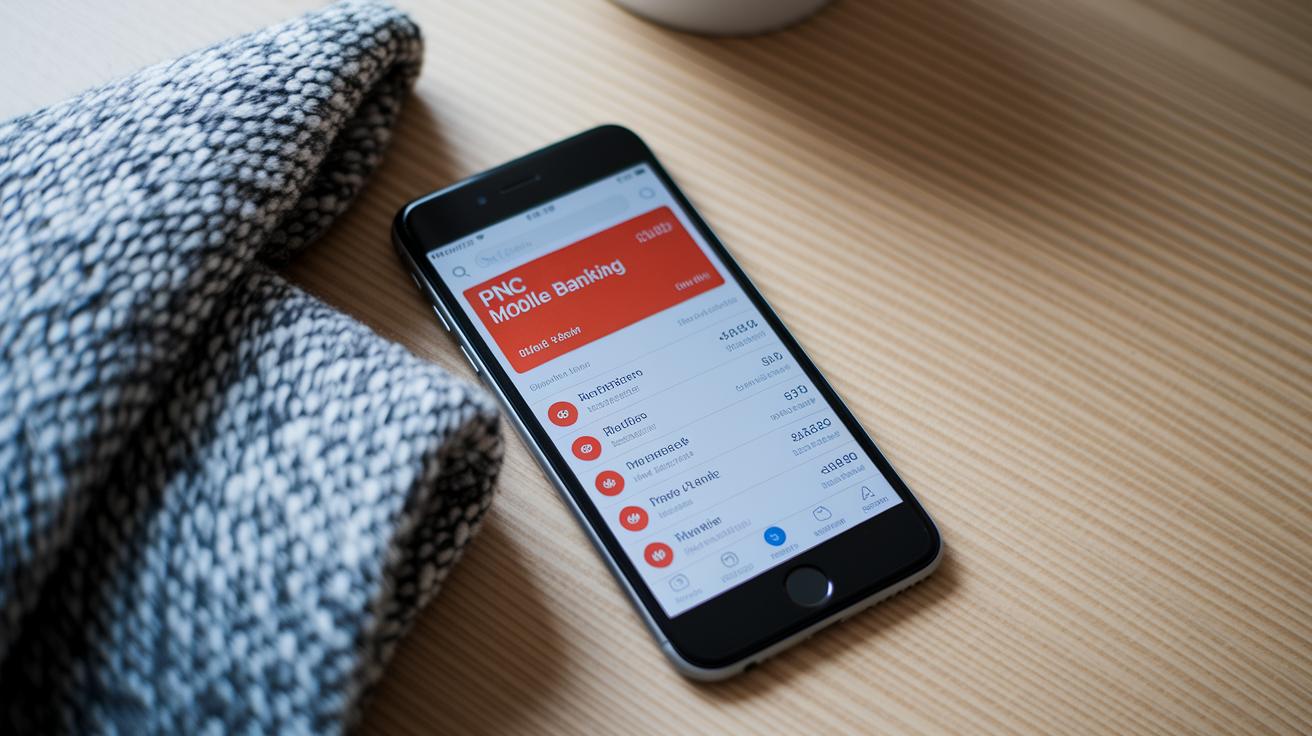
PNC Mobile Banking really puts your security first. The app automatically logs you out after three minutes of no activity or if you switch it to the background. This means that if you step away without locking your device, your data stays safe. Every connection uses TLS and AES encryption, so your information stays protected as it travels between your device and the bank.
You'll also get real-time alerts if something unusual pops up. Whether it's via SMS, email, or push notifications, you'll know right away if anything looks off. Plus, you have full control over your privacy settings, which means you decide what personal data you want to share. It’s all about giving you peace of mind and keeping you in charge.
PNC’s commitment to keeping things secure doesn’t stop at just encrypting data and sending alerts. The bank follows strict data privacy guidelines and federal banking regulations, and it’s FDIC-insured too. This commitment means that your mobile banking experience meets top security standards. PNC is always reviewing and updating its security measures, so you can bank with confidence knowing they’re on top of any new risks.
Troubleshooting PNC Mobile Banking & Getting Support
Sometimes, when the app isn’t working right, it feels like you’re caught in a maze. PNC helps you sort things out by offering clear, simple troubleshooting steps both in the app and online. Whether you're dealing with connection issues, unexpected crashes, or login errors, a few quick tweaks might set you back on track.
Here are a few suggestions:
- Check the Service Status page in the app or on the website to see if there are any reported outages.
- Update the app to the newest version available on your device.
- Clear your device’s cache to get rid of any temporary files that might be causing glitches.
- Restart your device to refresh the background processes that could be interfering with the app.
- Turn on status alerts so you receive timely notifications about any downtime or maintenance.
- Browse through the in-app support options and troubleshooting guides for more hints.
Contacting PNC Customer Support
If the issues keep hanging on, try using the in-app chat. This is a quick and friendly way to talk with a support agent, especially during weekdays between 8 AM and 8 PM ET. The chat is great for small, app-specific fixes. But if your issue sticks around or you need more detailed help with your account, you might want to call live support at 1-888-762-2265. Before you reach out, it helps to have your device details, the app version, and a quick description of what's going on handy. This way, the support team can work their magic more swiftly.
Tips for Optimizing Your PNC Mobile Banking Experience

Try swiping right from your home screen, and you'll see your account summary immediately. It’s a quick way to check your money details without any hassle. It’s like peering through a clear window into your finances, so you always know where you stand.
Press and hold on your dashboard widgets to move them exactly how you want. You can also toggle on dark mode or change font sizes in Display Settings. These small tweaks make your app feel personal and easy to use.
If you have thoughts about new features, use the Feedback option in Settings, your voice really matters. And don’t forget to check the update release notes for improvements that keep your banking smooth and efficient.
Frequently Asked Questions on PNC Mobile Banking
Q: What are daily mobile deposit limits?
A: You can deposit up to $50,000 every day using our mobile deposit feature. Each check can be as high as $100,000. This means you get plenty of room to work with while keeping your deposits safe and secure.
Q: Are there any fees for Zelle transfers?
A: No, there aren’t any fees for domestic Zelle transfers. It lets you send money quickly and securely without any extra costs, making your peer-to-peer transactions super simple.
Q: How do I access a cardless ATM?
A: Just tap the "Cardless ATM" option in the app, then choose the card or account you want to use. The app will generate a one-time code that you enter at the ATM, so you can withdraw cash safely without needing a physical card.
Q: How can I dispute a deposit or transaction?
A: If something doesn’t look right with a deposit or transaction, simply use the dispute form found under Transaction Details in the app. If you’d rather chat with someone, you can also call support for quick, secure help.
Q: Where’s the nearest PNC branch or ATM?
A: Locating a branch or ATM is a breeze. Tap the "Locate" feature in the app and you’ll see a list of nearby options along with their hours, services, and contact information to help you out.
Q: What legal disclosures apply?
A: All the legal details, including the full electronic banking agreement and privacy policy, are available under the “Legal” section in Settings. This way, you know exactly what your rights and responsibilities are when using PNC Mobile Banking.
Final Words
In the action, this guide covered steps from getting started with downloading and activating your account to mastering secure logins, check deposits, funds transfers, account monitoring, and troubleshooting. We walked you through each process while sharing optimization tips to make financial management straightforward. This review of pnc mobile banking provides clear insights into making confident decisions, ensuring your experience remains smooth and secure. The detailed breakdown puts a practical spin on technology, helping you stay positive and ready for the next opportunity.
FAQ
Q: What is the process to log in to PNC Mobile Banking?
A: The login process requires entering your PNC ID, password, and optionally a one-time secure code sent via SMS or email. Biometric logins like Touch ID are also available.
Q: How can I set up my PNC Mobile Banking account and sign up?
A: Setting up PNC Mobile Banking begins with downloading the app, then using your existing online banking profile or creating one, and finally completing activation with a secure token.
Q: How do I contact PNC Bank customer service?
A: Contacting PNC customer service is simple by calling their dedicated support line at 1-888-762-2265, or you can use the in-app chat available during standard service hours.
Q: Is there an outage affecting PNC Mobile Banking today?
A: If you suspect a problem with PNC Mobile Banking, check the Service Status page in the app or on PNC’s website for real-time updates on outages and maintenance.
Q: What is the PNC $400 bonus offer about?
A: The PNC $400 bonus offer requires meeting certain product usage conditions. For detailed eligibility and terms, review the official offer details on PNC’s website or consult customer service.
Q: How can I deposit a check using the PNC Mobile Banking app?
A: To deposit a check, simply photograph its front and back within the app. Remember, deposits must be submitted before the daily cut-off time and may be subject to set daily limits.


