
Ever thought about ditching cash and cards while keeping your money safe? Google Pay lets you tap your phone to pay without the extra hassle. It’s like having a secure wallet right on your phone.
This guide will walk you through every step, downloading the app, adding your payment details, and verifying your info. Once you’re set up, you can enjoy faster transactions and a smoother payment process. Ready to give it a try and simplify your everyday spending?
Quick-Start Guide to Configure Google Pay
Before you start, make sure your Google account is ready and your internet connection is steady. This way, you'll download and set up the app quickly while keeping your payments secure on the go.
-
Download the Google Pay app from the Play Store or App Store.
For example, search for "Google Pay" in your app store and look for the bright install button that stands out. -
Allow the app to access your contacts, NFC, and location.
When you see the prompt, tap "Allow" so the app can provide all its handy features. -
Sign in using your Google account.
This connects your payment information to your Google profile easily. -
Turn on NFC (Near Field Communication) or HCE (Host Card Emulation) if you’re using an Android device.
Enabling this helps your phone communicate smoothly with payment terminals. -
Pick your payment region and local currency.
For instance, choose your country to view prices in your own currency for a smoother experience. -
Add a default card or bank account.
You can manually enter your card details or use the quick-scan feature for a faster setup. -
Verify your payment method using an OTP or a small temporary hold on your account.
This step makes sure that your payment method is active and secure. -
Try a tap-to-pay transaction by holding your phone near a contactless terminal.
For example, make a small purchase at a nearby store and see how easily the payment goes through.
Once you’ve completed these steps, your Google Pay setup is ready, making tap-to-pay both simple and safe on your mobile device.
Verifying Device Compatibility for Google Pay

Your device needs to hit a few simple marks to run Google Pay without a hitch. For Android users, that means version 5.0 or later, and iPhone owners should be on iOS 11 or higher. Plus, your gadget has to support NFC (Near Field Communication, which helps your device connect with payment terminals) or HCE (Host Card Emulation, which mimics a payment card for tap-to-pay). And don’t forget to check if your region, like the US, UK, India, or another supported spot, offers full Google Pay support. This way, you get a steady and complete payment experience.
| Device Type | Minimum OS Version | NFC/HCE Support |
|---|---|---|
| Android Phone | 5.0+ | Yes |
| iPhone | 11+ | Requires Apple Pay fallback |
| Wear OS Watch | Wear OS 2.0+ | Yes |
Keep your mobile software up-to-date. On Android, update your Google Play services, and on iOS, check your Wallet settings. This simple maintenance gives you the latest security fixes and cool new features, making sure your payments are both smooth and secure.
Linking Your Bank and Cards in Google Pay
You can add your card by scanning it with your phone or by typing in your details manually. When you scan, your device quickly picks up the card number, expiration date, and the CVV (that three-digit code on the back). If you prefer to type it in, just make sure you enter your card number, fill in the expiration date correctly, include the CVV, and add your billing address. It’s a lot like filling out a simple online form where each number counts.
Once your card is in the app, Google Pay walks you through a quick check to make sure everything’s secure. Sometimes it sends a one-time password (OTP) via SMS or email to confirm it’s really you. In other cases, you might need to log into your bank via the app or see a tiny charge appear on your account to verify your card. If your scan doesn’t work or the verification hold doesn’t clear, just try reentering your details or check your internet connection. And if the problem sticks around, a call to your bank or a quick visit to their website could set things straight.
Setting Up Security Measures and Authentication for Google Pay
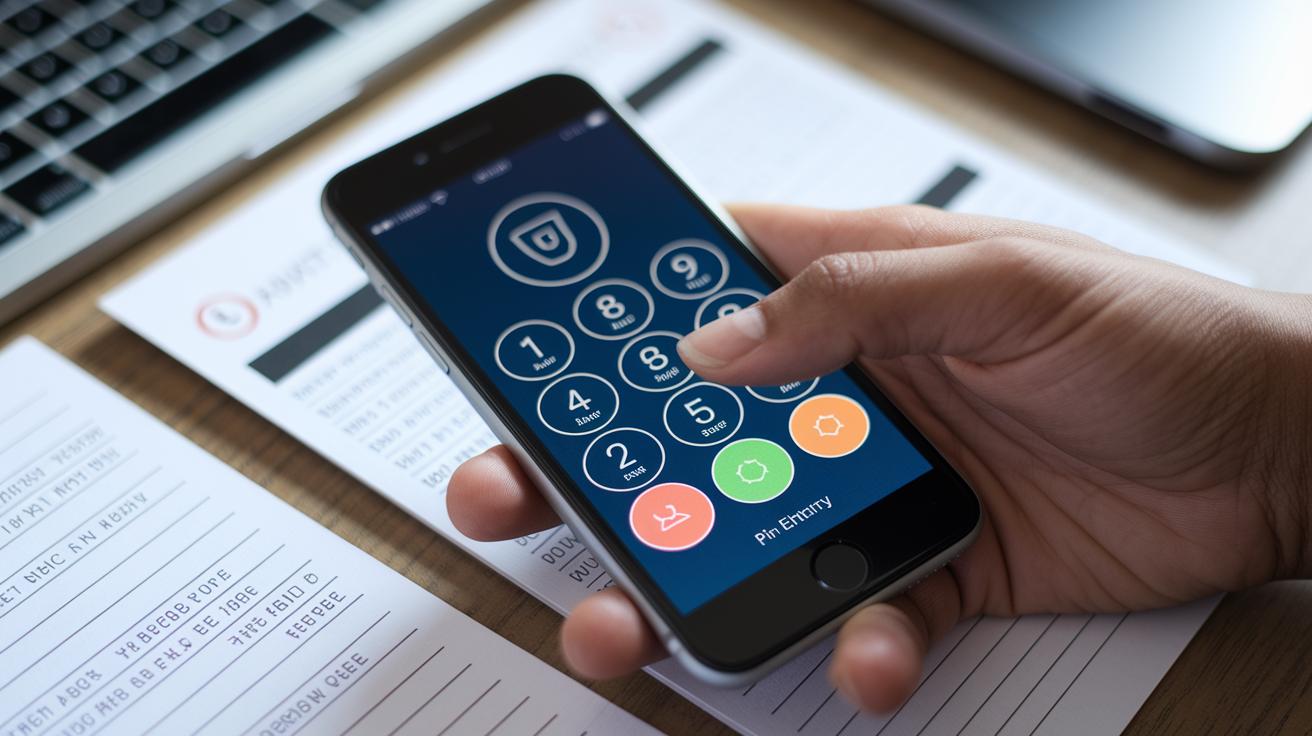
First off, update your lock-screen with a strong PIN, pattern, or password. This is like the first barrier that stops unwanted access. Think of your security code as a personal digital key to your money, a code that's not easy to guess but easy for you to remember. For example, you might choose a PIN like 3984 if it feels unique but sticks in your mind. And why not change it every now and then? That extra step helps keep any sneaky breaches at bay when you’re managing your transactions online.
Next, boost your protection by turning on biometric features like fingerprint or face unlock in the app settings. It’s also smart to enable two-step verification for your Google account. This means you’ll confirm your identity using a quick approval code, adding another layer of security. Plus, data encryption scrambles your payment details so that even if someone gets through, they won’t be able to read your info. Together, these steps create a strong defense, keeping your digital wallet safe and sound.
Troubleshooting Common Google Pay Setup Errors
When you're setting up Google Pay, you might hit a few bumps along the way. These issues can interrupt the process, but luckily, most have quick fixes to get you back on track. Here’s a simple guide to help you handle some common errors:
- “App not supported in your country”: Try switching your Play Store or App Store settings to a country where the app is available.
- “Unable to verify card”: Look out for a one-time password. If you don’t see it, clear your app cache and check again after about 24 hours.
- “NFC not working”: First, make sure NFC is turned on in your phone's settings. Then, restart your phone to refresh the connection.
- “Error DF-DLA-15”: Clear the Google Pay app data and update your Google Play services to fix any underlying issues.
- “Payment declined at terminal”: Confirm that the terminal supports contactless payments and consider using a different card if needed.
If none of these steps solve your problem, it might be best to contact Google Pay support for further help.
Customizing Google Pay Experience with Advanced Features
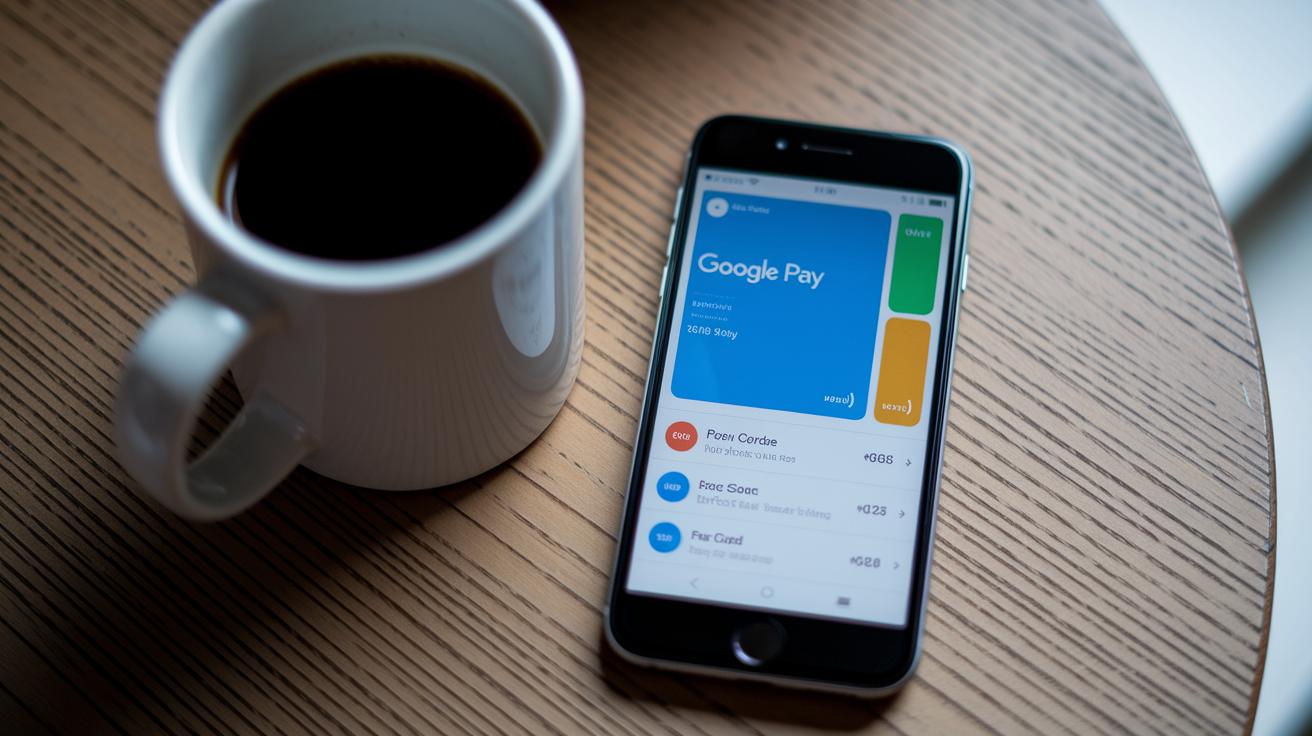
When you set up Google Pay, you get a lot of flexibility to make the app truly yours. You can choose which card pops up right on your home screen, perhaps your debit card for daily spending, while your loyalty cards take a back seat. Changing this layout is straightforward and makes it easier than ever to find your preferred payment method at a glance.
You can also schedule recurring bill payments inside the app, so you don’t have to worry about missing a due date. Plus, you can set up alerts to let you know when your spending reaches a certain limit. And if you want to stay in the loop, push notifications will instantly update you every time a transaction occurs. It’s like having a helpful reminder right in your pocket.
For those looking to get more out of their app, you can enroll in merchant rewards and cashback programs directly through the Offers tab. This lets you uncover exclusive deals and bonus rewards from stores you love, turning everyday purchases into smart savings opportunities.
Final Words
In the action, this guide walks you through setting up your mobile payment app. It details the simple steps from app download and permissions to linking your bank cards and setting up secure access. The walkthrough even addresses small issues so you can easily troubleshoot common errors. By following our guide on how to set up google pay, you gain clear instructions that build your confidence. This clarity helps you stay up to speed with tech changes and reinforces smart, safe payment practices. Enjoy the process and keep your payments running smoothly.
FAQ
How to set up Google Pay on an Android phone?
Setting up Google Pay on Android involves downloading the app from the Play Store, granting necessary permissions, signing in with your Google account, and then adding your default payment method to start making transactions.
How to set up Google Pay on an iPhone?
Setting up Google Pay on an iPhone starts by downloading the app from the App Store, signing in with your Google account, and then adding your card details, which allows you to use contactless payments.
How do I set up Google Pay on a computer or online?
Setting up Google Pay on a computer is done by logging into your Google account through a compatible browser where you can view and manage your account, though the app setup and tap-to-pay features remain mobile-focused.
How do I activate my Google Pay account?
Activating Google Pay means installing the app, signing in with your Google account, verifying your added payment method via OTP or a small hold, and then testing your tap-to-pay transactions for smooth operations.
Is Google Wallet the same as Google Pay?
Google Wallet and Google Pay share similar payment functions; Google Wallet is focused on storing payment passes and cards, while Google Pay provides a broader suite of financial management and transaction tools.
How do I pay using Google Pay?
Paying with Google Pay means holding your activated phone near a contactless terminal. Once your account and payment method are verified, the tap-to-pay feature processes your purchase securely.
What sets Google Pay apart from Samsung Pay, Apple Pay, PhonePe, and Paytm?
Google Pay integrates deeply with Google services and focuses on contactless payments and financial management, while other apps like Samsung Pay, Apple Pay, PhonePe, and Paytm are tailored to specific devices or regional features.
What is the Google Pay app and how can I download it?
The Google Pay app is a secure digital wallet available for download on the Play Store and App Store. It streamlines payment processes and financial management for users on multiple device platforms.


