
Have you ever wished sending money was as easy as sending a text? With Apple Pay, you can. You just tap your iPhone, iPad, or Apple Watch, and within moments your payment is sent safely (that means your money is protected), leaving you more time for what matters.
Whether you're splitting a bill or sending a small gift, transferring money becomes a breeze. This handy feature really changes the way we move money every day.
Let's take a closer look.
Instant Overview of Sending Money with Apple Pay

Apple Pay lets you send money to friends and family right here in the United States using US dollars. It works on your iPhone, iPad, Apple Watch, or Mac as long as you're running iOS 11.2 or later. Your transactions start in the Wallet app where your Apple Cash funds are kept safe and ready to use. Every time you pay, the system pulls money first from your available Apple Cash balance.
There are two simple ways to send money. The first way is through the Wallet app. Just tap your Apple Cash card and then tap Send. Next, choose a person from your contacts or type in their phone number or email address, enter the amount you want to send, and then confirm the transaction using Face ID or Touch ID. For example, clear instructions can be a fun surprise: Did you know that before she became famous, Marie Curie used to carry test tubes filled with radioactive material in her pockets, not knowing the dangers that would later change her life?
The second way is by using Messages. Open an iMessage conversation, tap the Apple Pay icon, enter the amount you wish to transfer, and authenticate the payment in a similar way. Both methods offer a quick and secure way to move money, with a handy notification letting you know when the transfer is complete.
Device and Account Setup for Apple Pay Money Transfers

First, unlock your device, be it an iPhone, iPad, Apple Watch, or Mac, and open the Wallet app. Check that your Apple ID is active and that you have two-factor authentication enabled. Think of two-factor authentication as an extra lock on your door, adding a layer of protection that's easy to use.
Next, add or review your Apple Cash card in Wallet. Follow the on-screen prompts to load funds from your linked debit card or bank account. A quick check now will save you time later if you ever need to send money quickly.
Also, be sure your device’s region is set to the United States because Apple Cash and money transfers only work domestically.
- Open the Wallet app.
- Verify your Apple ID and enable two-factor authentication.
- Confirm your Apple Cash card and load funds.
- Set your region to the United States.
For example, you might tap your profile, review your settings, and then enjoy smooth, hassle-free money transfers.
Step-by-Step Apple Pay Money Transfer Tutorial

Apple Pay makes sending money super simple whether you use the Wallet app or Messages. Before you begin, always check the contact info of the person you're sending money to so you keep things safe.
Using the Wallet app is easy:
- Unlock your phone and open the Wallet app.
- Tap your Apple Cash card to see your options.
- Choose Send and pick who you're sending money to from your Contacts, or type in their phone number or email.
- Type the amount you want to send. Think of it as a quick, precise transfer.
- Tap Pay and use Face ID or Touch ID to verify your identity.
- You'll get a quick confirmation showing that the money has been sent.
Sending money via Messages works just as smoothly:
- Open an iMessage chat with someone who uses Apple Cash.
- Tap the Apple Pay icon to start.
- Type in the amount you want to send.
- Tap Pay to kick off the transaction.
- Confirm using Face ID or Touch ID.
- Look out for a notification – it shows your money has been sent safely.
| Method | Steps |
|---|---|
| Wallet App |
|
| Messages |
|
Before you hit confirm, make sure the person receiving the money is the right one. This little extra check helps add a layer of security to all your Apple Pay transfers.
Withdrawing Funds and Transfer Limits in Apple Pay
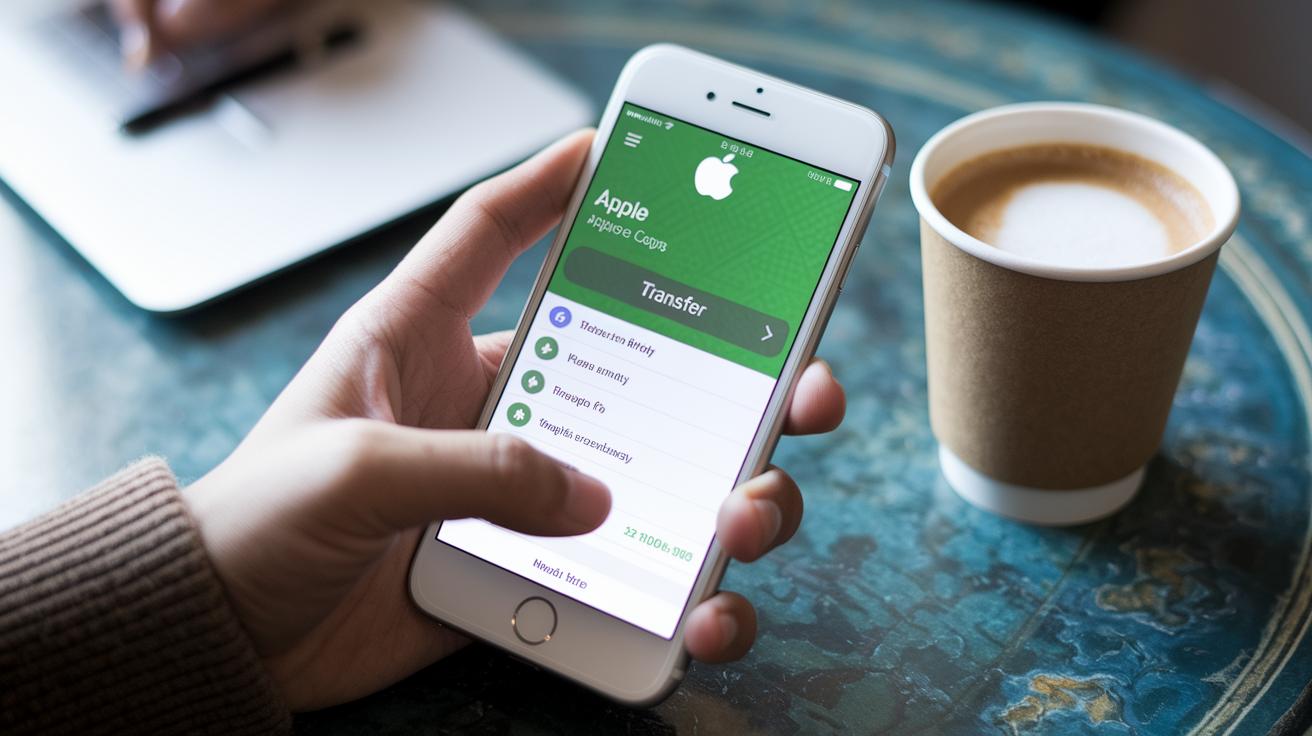
Apple Cash gives you two easy ways to get your money out. First, you can choose a standard bank transfer. It takes about 1–3 business days for the funds to reach your bank account, and best of all, it’s free. Think of it like mailing a letter, it might take a bit longer, but it won’t cost you a cent.
If you need cash in a hurry, go for an instant transfer to an eligible debit card. This option comes with a fee of 1.5%, with a minimum charge of $0.25 and a maximum of $15 each time. So, if you need access to your money right away, this quicker method could be worth the small extra cost.
Keep in mind that Apple Cash only works in the United States. If you ever need to send or receive money internationally, you’ll have to look for another service, like Wise.
- Standard transfer: 1–3 business days, no fee.
- Instant transfer: Transfers to eligible debit cards with a 1.5% fee (minimum $0.25, maximum $15).
Also, watch out for your daily and weekly send limits. It’s a good idea to check your Wallet app from time to time to keep your transactions smooth and secure.
Security Practices and Troubleshooting for Apple Pay Transfers
Apple Pay uses smart tools like tokenization (a way to hide your details by replacing them with random symbols) and fingerprint or face checks to keep your payments secure. Every time you transfer money, these safeguards help ensure your funds move safely between accounts. Still, from time to time, small hiccups might slow things down, and knowing how to fix them can really save you a hassle.
Sometimes, issues arise because your Apple Cash balance is too low, your device isn’t running the latest iOS (the system software for your phone), your region settings might be off, or there could be a weak network connection. For instance, if a payment suddenly fails, first check that you have enough money on your Apple Cash card, and then see if your device needs an update.
Here are a few tips you can try:
- Make sure your Apple ID and region settings match the United States.
- Update your device to the newest iOS version to keep everything running smoothly.
- Double-check that your funding source is correctly set and that you have sufficient funds.
- Look into your Wi-Fi or cellular connection if things seem to be lagging.
Following these steps can help you overcome minor glitches easily, ensuring your transactions keep flowing smoothly. It’s all about paying attention to the small details so that your financial journey stays secure and stress-free.
Final Words
In the action, we broke down how to send money with Apple Pay quickly and clearly. We reviewed setting up devices and accounts, walking through the step-by-step methods via the Wallet app and Messages, and explained transfer fees and limits.
We also highlighted security practices and troubleshooting tips to keep funds safe. This guide shows exactly how to send money with apple pay in a simple, reliable way. Enjoy smoother transfers and greater confidence in your financial moves.
FAQ
How to send money with Apple Pay without a card?
The process lets you send money using your available Apple Cash balance from your Wallet app even if no physical card is linked.
How do I receive money on Apple Pay?
Receiving money means funds sent to you directly increase your Apple Cash balance, which you can view instantly within your Wallet app.
What is Apple Cash, and how do I set it up and use it?
Apple Cash is a digital wallet balance for sending and receiving funds. You set it up in the Wallet app by verifying your Apple ID, region, and linking a funding source.
How can I transfer money from Apple Pay to my bank instantly?
The instant transfer feature lets you send money from your Apple Cash to an eligible debit card, though a small fee typically applies.
How do I send money to Apple Pay from an Android device?
Apple Pay works only on Apple devices. Android users can try similar services like Google Pay or Cash App for peer-to-peer money transfers.
Are Apple Pay, Apple Wallet, Cash App, Google Pay, and Samsung Pay the same?
Apple Pay is a method for secure payments using Apple devices. Apple Wallet stores your cards, while Cash App, Google Pay, and Samsung Pay serve as alternative mobile payment platforms.
Why can’t I send money through Apple Pay?
Difficulties usually occur if your Apple Cash balance is too low, your device’s iOS is outdated, your region is misconfigured, or if there are connectivity issues.
Can I transfer money from Apple Pay to another account?
Your Apple Cash funds mostly allow transfers from Wallet to your bank account. Direct transfers to non-Apple accounts aren’t supported.
How do I pay with Apple Pay?
Paying with Apple Pay involves holding your device near a payment reader and authenticating with Face ID or Touch ID so your transaction is securely completed.


